When the sim refuses to see your wheel, the fault is almost always below the game, a USB port, a driver, or a firmware update that half-applied. The first move I make on my own rig is to open Windows Game Controllers by typing joy.cpl in the Start menu. If the wheel is not listed there, no sim on earth will detect it, and you stop troubleshooting in the game and work downward. Reseat the cable in a motherboard port, confirm the base’s driver app sees it, then reinstall the driver before you ever suspect the base itself.
This is the single most common fault I get asked about, and the reason it frustrates people is that it feels catastrophic when it is usually trivial. A base that vanished overnight is rarely a dead base. It is a port that went to sleep, a Windows update that re-enumerated the device, or a driver that needs a clean reinstall. I will walk the exact order I use, from the thirty-second checks to the driver-reinstall sequence that actually clears the fault. If you want the broader map of every wheel-and-pedal fault, the hub is at Sim Racing Wheel Troubleshooting; this spoke owns the one specific problem where the game does not detect the wheel at all.
Confirm the Fault Is Below the Game
Before you touch a single cable, prove where the break is. Open Game Controllers and watch the test gizmo while you turn the rim and press the pedals. Three outcomes, three different fault families:
- The wheel is not listed at all. The operating system does not know the device exists. This is a connection, port, driver, or firmware problem, and it is the case this guide targets.
- The wheel is listed but the test gizmo does not move. The device enumerates but sends no data. That points at a rim PCB, a quick-release connection, or a base firmware state, covered further down.
- The wheel is listed and responds, but the game still does not see it. The fault is inside the sim’s controller assignment, the cheapest fix of all.
That single test splits the diagnosis in half before you unplug anything. If the manufacturer’s driver app, Fanatec, Moza, Simagic, or whoever made your base, is installed, open it too. The app talks to the base over the same USB path the sim uses. If the app finds the base and the sim does not, you have a game-side assignment problem. If the app cannot find the base either, the fault is below the app, and you move to the connection.
Reseat the Connection the Right Way
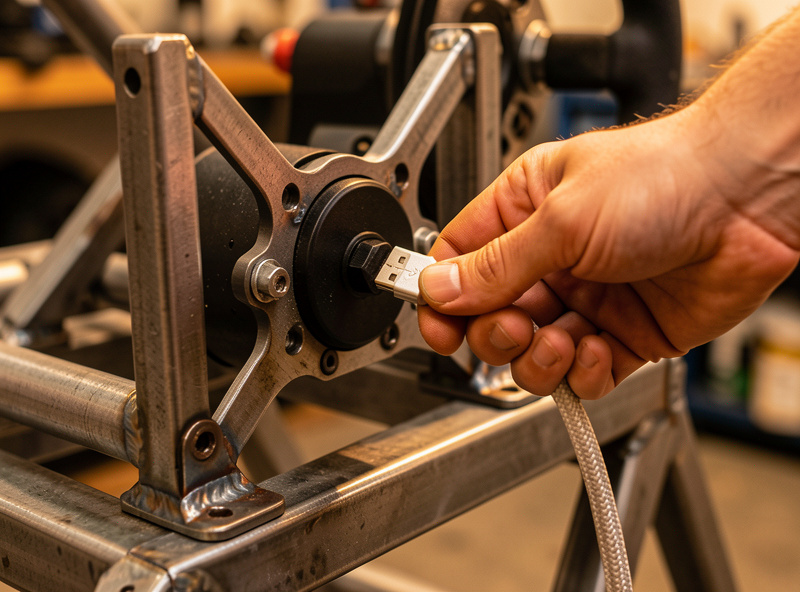
Reseating a cable sounds too simple to be the fix, but on my rig it clears the majority of not-detected faults, so I do it deliberately rather than randomly. Pull the USB cable at both ends, inspect the connectors for bent pins or dust, and plug it back in firmly. Then change the port you use. Front-panel headers, USB hubs, and monitor USB ports are the three most common culprits, because they share a controller and a power rail with other devices and drop sustained connections under load. Move the base to a dedicated port on the motherboard backplane and test again.
If the base has its own power supply, and direct-drive bases always do, check the barrel plug at the base end and the LED on the brick. A base that is partially powered can enumerate intermittently and drive you mad. On a rig I help maintain, a not-detected fault that recurred for weeks was finally traced to a barrel plug that had walked loose from frame vibration, a fault that reseating fixed in five seconds once we thought to look. The lesson is that “is it plugged in” is not condescension, it is step one, and it deserves a proper look rather than a glance.
Reinstall the Driver Cleanly
If the connection is solid and the base still does not enumerate, the driver is the next suspect, and the way you reinstall it matters. The sequence I trust, learned the hard way after a half-removed driver left a base in limbo for a weekend: uninstall the current driver from Windows, disconnect the base from USB, reboot the PC, install the latest driver from the manufacturer’s website while the base is still unplugged, reboot again, then reconnect the base and let Windows finish the install. That order matters because a driver installer that runs while the old driver’s service is still holding the device can leave you worse off than you started.
Always pull the driver from the manufacturer’s own site rather than letting Windows find one automatically. Windows is enthusiastic about installing a generic driver that kind of works, and that generic driver is the source of a surprising number of not-detected and no-force-feedback reports. Once the proper driver is in and the base is reconnected, open the manufacturer app one more time and confirm it sees the base and reports a firmware version. If it does, the connection layer is clean and any remaining detection fault is either firmware or game-side.
Firmware That Half-Applied
A firmware update that was interrupted, by a click too fast, a USB dropout, or a power blip mid-write, can leave a base in a state where it powers on but never finishes enumerating. The symptoms look exactly like a dead base or a bad driver, which is why this one traps people. The tell is that the base’s LED sits in an unusual state, often a slow blink or a stuck color, and the manufacturer app either cannot see the base at all or sees it but reports no firmware version.
The recovery path differs by manufacturer but follows the same shape: put the base into a bootloader or recovery mode, usually a button combination held at power-on, then use the manufacturer’s recovery tool to push a clean firmware image. This is the one situation where I will run a firmware operation twice and not complain about it, because a clean reflash is genuinely the fix. If you are on a rig without a UPS, this is also the moment to regret it, because a brownout during a recovery flash can turn a recoverable base into a paperweight. The sim PC on my rig runs through a UPS for exactly this reason.
Quick-Release and Rim Seating
On quick-release systems, a base that the app can see but that reports no wheel attached, or that enumerates then drops, is often a rim that is not fully seated on the QR. The QR has to lock positively; a rim clicked most of the way on but not rotated to the detent will make intermittent electrical contact through the pins and behave like a fault. Pull the rim, inspect the contact pins on both the QR and the rim PCB for bending or oxidation, reseat it until it locks, and test. I had a rim that would enumerate only when held at a specific angle, which is the classic signature of a single bent pin not making contact.
This is distinct from a base that disconnects once you are already driving, which is a different fault family with its own cause list. If your wheel is detected fine but drops mid-session, that lives in Why Your Sim Wheel Keeps Disconnecting, not here.
Assign the Right Controller Inside the Sim
If Game Controllers sees the wheel and the manufacturer app sees the wheel but the sim still does not, the fault is the sim pointing at the wrong device, and the fix is a single menu. Titles that auto-pick the first controller they find will happily attach to a gamepad, a HOTAS, or a second wheel left plugged in, and silently ignore your base. Unplug every other controller, open the sim’s options, and manually assign the wheel as the primary controller. In iRacing that is the Options, Controls, Calibrate Tabs path; in ACC it is Controls under Options; in AMS2 it is the Controls and Bindings screen. Reassign, save, and the wheel appears.
One last trap: a Windows update can re-enumerate the base on a new USB address, which leaves the sim’s saved assignment pointing at a ghost. The wheel is fine and detected by the OS, but the sim is still looking at the old address. Re-selecting the controller in-game clears it every time. If detection is solid but force feedback is missing entirely, that is the next layer up, covered in No Force Feedback in Your Sim.
A note on cables: the USB cable between your PC and the base is a data cable, and a cheap or charge-only cable will not carry the USB enumeration handshake even if it fits. If you have ruled out everything else, try a known-good quality data USB cable before you conclude the base is faulty. As an Amazon Associate I earn from qualifying purchases. If you need one, here is a search for quality braided USB data cables.
Frequently Asked Questions
Why won’t my PC detect my sim wheel?
Start in Windows Game Controllers (joy.cpl). If the wheel is not listed, the OS does not see the device, so the game cannot either. Reseat the USB cable in a dedicated motherboard port, then reinstall the manufacturer driver. Most not-detected faults are a port, cable, or driver problem, not a dead base.
How do I reinstall my sim racing wheel driver?
Uninstall the current driver, disconnect the base from USB, reboot, install the latest driver from the manufacturer’s website while the base is unplugged, reboot again, then reconnect. Installing while the old driver service still holds the device is what leaves bases in a broken state.
Why does joy.cpl show my wheel but the game doesn’t?
The operating system sees the wheel, so the fault is the sim’s controller assignment. A Windows update may have re-enumerated the base on a new USB address, or another controller is grabbing priority. Unplug other devices and manually reassign the wheel as primary in the sim’s controls menu.
Can a bad USB cable stop a wheel being detected?
Yes. The USB cable to the base carries the data handshake, and a charge-only or fatigued cable will not complete enumeration even if it fits. If ports and drivers are ruled out, swap in a known-good quality data USB cable before assuming the base has failed.
How do I fix a Fanatec wheel not being detected?
Open the Fanatec driver app; if it cannot see the base, reseat the USB on a motherboard port and reinstall the driver. If the app sees the base but reports no wheel attached, reseat the rim on the quick-release and check the contact pins. A stuck LED with no firmware version points to a half-applied firmware update needing a recovery reflash.