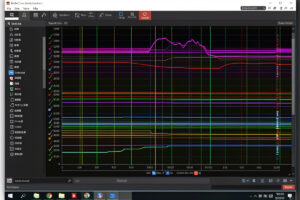
MoTeC i2 is the analysis software the professional motorsport world uses to read data logs, and both iRacing and ACC export straight into it for free. If you want one tool to grow into for sim racing telemetry, this is it: i2 Standard and i2 Pro cost nothing, the workflow is the same one race engineers use, and once a lap is loaded you can overlay, math-channel, and dissect it down to the millisecond. On my rig it is the app I open for every serious debrief.
The catch is that MoTeC is built for engineers, not for a friendly first-run wizard. The first time you open i2 it looks like a cockpit you have no manual for. This guide is the shortcut I wish I had — how to get your sim data in, how to lay out a workspace that actually helps, and which of the dozens of channels are worth your attention. It is one spoke of the broader sim racing telemetry guide, so start there if you want the overview first.
Why MoTeC Is the Default for Serious Data
MoTeC i2 became the sim racing standard for a simple reason: it is the real thing, free, and the sims export native to it. iRacing writes .ibt telemetry files you convert and open in i2; ACC logs .ld/.ldx files directly to MoTeC when you enable logging. Because it is the same software used in actual racing, every tutorial, forum thread, and workspace people share assumes MoTeC, so the knowledge compounds.
The other reason is depth. i2 lets you build math channels — derived data like ideal-line deviation or brake-release rate that the sim does not export directly — and that is where analysis goes from descriptive to diagnostic. You are no longer just looking at what happened; you are computing why. For a hobbyist that is more power than you need on day one, but it means you never outgrow the tool.
Getting iRacing and ACC Data Into MoTeC
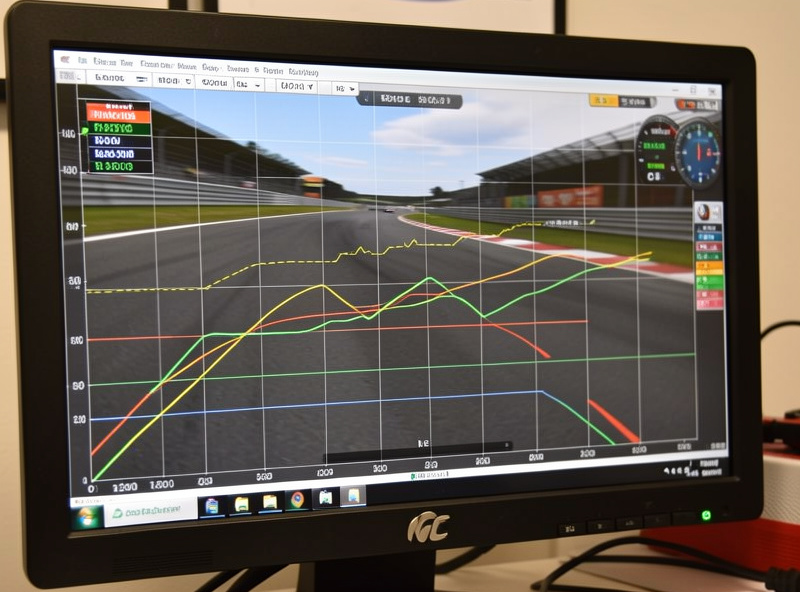
For iRacing, telemetry is recorded automatically to your telemetry folder as .ibt files, or you can toggle capture with a key bind during a session. You then use the MoTeC-supplied converter (or a community tool) to turn the .ibt into a format i2 opens. Many people simplify this with a one-click importer, but the underlying path is always .ibt to MoTeC.
For ACC the route is cleaner: enable MoTeC logging in the ACC config, drive, and the game writes .ld and .ldx files into a Documents folder that i2 opens directly — no conversion step. ACC’s logging is genuinely good, exposing tyre temperatures across the tread, damper positions, and ride height that make it a favourite for setup work. The ACC setup guide pairs naturally with this once you can read the data.
Whichever sim you run, the first-time friction is all in the import. Once a lap is in i2, the analysis is identical. If you are an iRacing-first driver, the iRacing beginner guide covers the surrounding setup, and the newer assisted options in the iRacing data analysis tools spoke can shortcut the import entirely.
i2 Standard vs i2 Pro: Which to Install
MoTeC offers two free tiers, and for sim racing the differences are smaller than the names suggest. Both read your sim data and both do the core overlay-and-delta work. Pro adds math channels and more advanced layout tools. The table below is how I would steer a newcomer.
| Capability | i2 Standard | i2 Pro |
|---|---|---|
| Cost | Free | Free |
| Lap overlay + time delta | Yes | Yes |
| Standard channel graphs | Yes | Yes |
| Custom math channels | Limited | Full |
| Advanced workspace layouts | Basic | Full |
| Best for | Getting started, driving analysis | Setup work, deep diagnosis |
My honest advice: install i2 Pro from the start. It is the same free download, and you will want the math channels eventually. There is no reason to learn Standard and then relearn Pro. The interface is identical for the basics, so the extra capability simply sits unused until you need it.
Building a Workspace That Helps
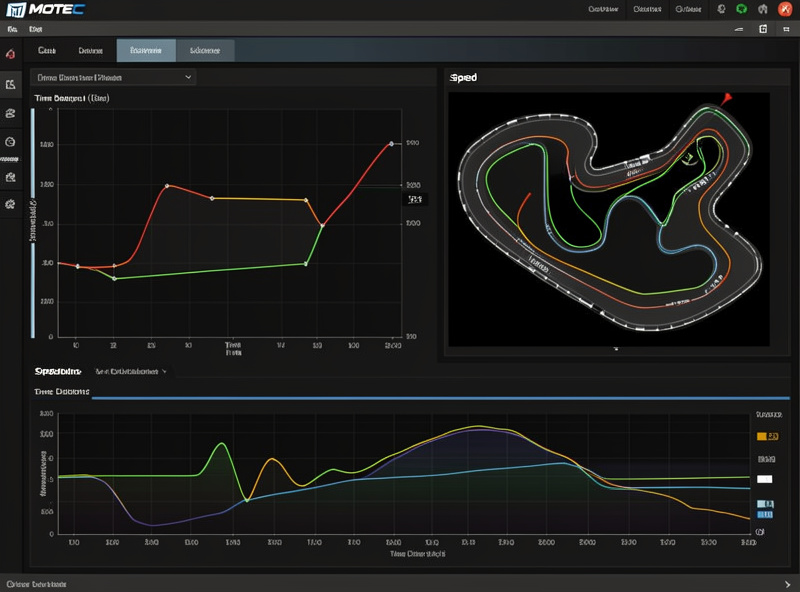
MoTeC opens to a blank-ish canvas, and the secret to making it useful is a good workspace layout. I run a top time-distance graph with throttle, brake, and steering for the lap I am studying overlaid on a reference, a speed channel directly beneath so divergences line up vertically, and a track map on the side that I click to jump to any corner. That single layout answers most questions.
Add a cumulative time-variance channel — the running delta against the reference — and you have the whole diagnostic in one screen: the variance line shows where you lose, and the input traces directly above show why. Save it as a workspace so you never rebuild it. Plenty of sim racers share their MoTeC workspaces, and starting from a community layout then tweaking it to taste is far faster than building from scratch.
The Channels Worth Your Attention First
MoTeC will happily show you a hundred channels. Ignore most of them at first. Start with the same four that drive every analysis: throttle, brake, steering angle, and speed, overlaid against a reference lap. That combination finds the majority of lost time, and learning to read it well matters more than collecting channels — the reading telemetry data guide goes trace by trace.
Once those are second nature, add the time-variance channel to pinpoint where to look, then the track map for navigation. Only after that do the setup channels — tyre temperature, slip, damper position — earn screen space, and those are the domain of the tyre and suspension telemetry guide. Build the habit before the channel count; a four-channel reader who understands shapes beats a forty-channel collector who does not.
Math Channels: Where MoTeC Earns Its Keep
The feature that justifies MoTeC over a simpler overlay is math channels. These are computed traces you define — brake-release rate, throttle-application smoothness, the gap between your line and an ideal — that turn raw data into diagnosis. A community-shared “driver consistency” math channel, for example, can quantify how repeatable your inputs are across a stint, which is gold for chasing race pace rather than a one-lap hero time.
You do not need to write these yourself at first. The sim racing community shares math-channel libraries you import wholesale, and that is the smart starting point. Learn what the existing channels tell you, and only later start authoring your own when you have a specific question the standard channels cannot answer. This is the same overlay-and-compare logic taken one level deeper, and the comparison laps guide covers the method it builds on.
The Mistakes That Make MoTeC Feel Useless
The reason people bounce off MoTeC is rarely the software — it is loading a single lap and staring at it with nothing to compare against. One lap in isolation tells you almost nothing; the entire value is in the overlay. Always load a reference, even if the reference is just your own earlier best, so the time-variance channel has something to measure. The moment you add a reference, the blank graphs start telling a story.
The second trap is mismatched references. If you overlay a lap from a different car, a different setup, or wildly different conditions, the deltas will point you at changes that do not apply. Keep your comparisons honest: same car, same track, comparable conditions, and a reference that is a sensible step ahead of you rather than untouchably fast. I keep my reference laps filed by car class and track so I never grab the wrong one.
Finally, do not let the channel count intimidate you into inaction. You will see engineers’ screens crowded with twenty traces and assume you need all of them. You do not. A clean four-channel layout you actually read beats a cluttered one you ignore. Add channels only when a specific question demands them — that discipline is what separates useful analysis from data hoarding.
Frequently Asked Questions
Is MoTeC i2 really free for sim racing?
Yes. Both i2 Standard and i2 Pro are free downloads from MoTeC, and iRacing and ACC export data into them at no cost. You only pay if you buy MoTeC professional logging hardware, which sim racing never needs.
Should I install i2 Standard or i2 Pro?
Install i2 Pro from the start. It is the same free download, the basics work identically, and Pro adds math channels you will want later. Learning Standard first only means relearning the interface when you upgrade.
How do I get iRacing data into MoTeC?
iRacing records .ibt telemetry files automatically, or you bind a key to capture a session. You then convert the .ibt with the MoTeC converter or a community importer and open it in i2. Many sim racers use a one-click importer to skip the manual step.
Does ACC export to MoTeC directly?
Yes. Enable MoTeC logging in the ACC configuration and the game writes .ld and .ldx files to your Documents folder that i2 opens with no conversion. ACC logging includes excellent tyre and damper channels for setup work.
What channels should I look at first in MoTeC?
Start with throttle, brake, steering angle, and speed overlaid against a reference lap, plus a time-variance channel to show where you lose time. Those find most lost time before any tyre or suspension channel matters.
Do I need to write my own math channels?
No, not at first. The sim racing community shares math-channel libraries you can import whole, covering things like consistency and brake-release rate. Learn those first and author your own only when you have a question the standard channels cannot answer.