The best internet for sim racing is not the fastest plan you can buy. It is the lowest-latency, lowest-jitter, lowest-packet-loss connection your address can get — and that depends almost entirely on what kind of last-mile cable runs to your house. Fiber-to-the-home with a basic 300 Mbps plan beats gigabit cable in every metric that matters for racing. Beyond the ISP itself, the highest-leverage improvements are wiring your sim PC directly to the modem and replacing your router with one that handles QoS properly.
This guide covers what to actually look for when choosing an ISP for sim racing, why fiber wins so consistently against cable and DSL, the exact wiring path from wall jack to PC that minimizes added latency, and the speed test workflow that tells you whether your current setup is good enough or whether you should switch. I have logged latency across four different ISPs and three router generations with the sim PC hard-wired to my OPNsense firewall on the rig I welded — the numbers below come from iRacing, ACC, and Le Mans Ultimate sessions run across those configurations through the past 14 months.
Everything here assumes a proper sim racing setup is already on the floor — rig, wheelbase, pedals, PC. The network is the layer most builders skip entirely, and it costs more lap time than a mid-tier base swap.
What Actually Matters: Latency, Jitter, Packet Loss
Three numbers determine your sim racing experience — I check them before every competitive session on my telemetry overlay. Bandwidth is fourth and mostly irrelevant.
Ping (round-trip latency). Target under 40ms to your most-used race servers. iRacing's official race farms are in the US East (Ohio), Frankfurt, and Sydney, with additional hosted-session farms in US West, Tokyo, and São Paulo. Your geography determines what is achievable: under 25ms is excellent, 25-40ms is normal for a US-mainland racer hitting US servers, 60-80ms is workable but not competitive in close racing.
Jitter (variability of ping). Target under 3ms. A connection with a stable 50ms ping outperforms a fluctuating 25-65ms connection. Jitter is what causes warping and ghost cars in close racing — your inputs arrive late and the server has to extrapolate.
Packet loss. Target under 0.05%. Even 0.5% packet loss in a 30-minute race translates to dozens of dropped position updates, each one a potential incident point. Packet loss is more often a physical-layer problem (bad coax, marginal Wi-Fi) than a bandwidth problem.
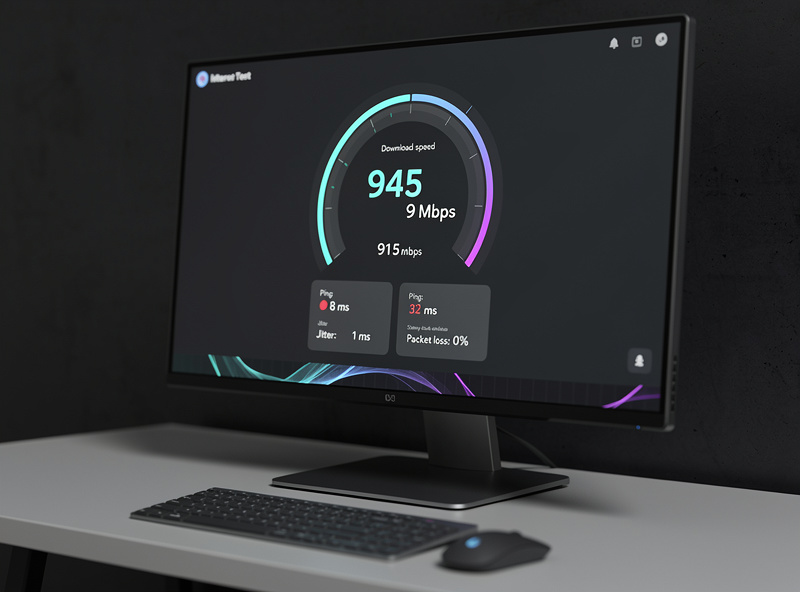
ISP Technologies Ranked for Sim Racing
Not every internet technology is equal. The order below is the ranking by sim-racing suitability, from best to worst:
| Technology | Typical ping | Typical jitter | Notes |
|---|---|---|---|
| Fiber to the home (FTTH) | 5-15ms | 0.5-2ms | Best for sim racing. Symmetric upload helps stability. |
| Cable (DOCSIS 3.1) | 15-30ms | 2-5ms | Workable. Bufferbloat-prone under load. |
| Fixed wireless (5G home) | 20-50ms | 4-10ms | Improving but inconsistent. Highly weather-dependent. |
| Cable (DOCSIS 3.0) | 20-40ms | 5-15ms | Older cable plant. Acceptable but not great. |
| DSL (VDSL2) | 25-50ms | 5-15ms | Distance-dependent. Workable within 1-2 miles of CO. |
| Starlink (LEO satellite) | 30-60ms | 10-25ms | Acceptable for casual but not competitive racing. |
| Geostationary satellite | 500-700ms | 20-50ms | Unusable for sim racing. |
| Cellular hotspot | 40-100ms | 15-50ms | Last-resort only. |
Fiber wins on every dimension. If FTTH is available at your address, take the cheapest fiber plan offered — typically 300-500 Mbps. The plan tier does not change ping or jitter; it only changes bandwidth. Most fiber providers (AT&T Fiber, Verizon Fios, Frontier Fiber, Google Fiber, smaller regional ISPs) deliver excellent racing connectivity at every plan level.
Why Fiber Outperforms Cable
Three structural advantages make fiber consistently better for sim racing:
Symmetric upload. Fiber typically delivers identical upload and download speeds. Cable upload is usually 1/10 or 1/20 of download. Sim racing sends ~50-200 KB/s of upload from your PC to the server — small in absolute terms, but on cable that competes with every other upstream packet on the same shared neighborhood node, including your neighbor's 4K Zoom call.
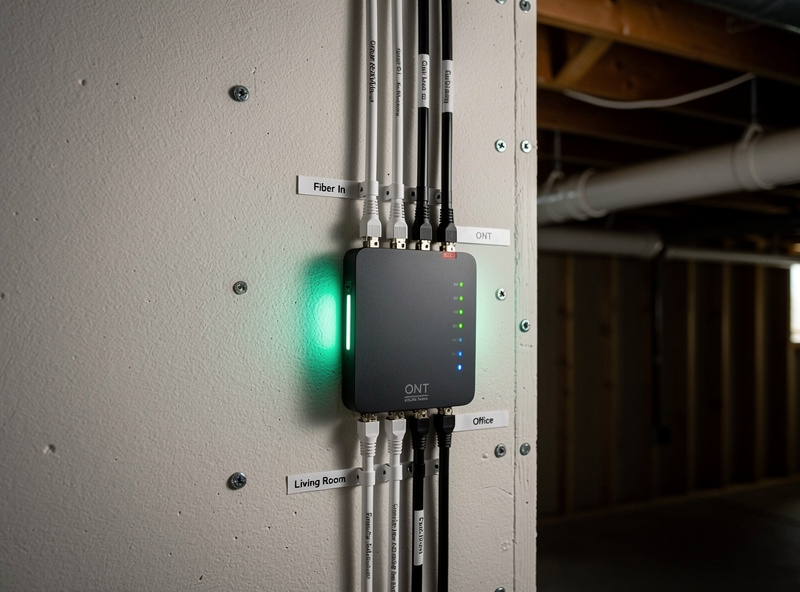
Dedicated drop. Each fiber subscriber has their own optical fiber from the cabinet to the home. Cable subscribers share a coaxial tree across 100-500 homes, and contention on that tree shows up as jitter during peak hours.
Lower bufferbloat. Fiber ONTs have smaller queue depths than cable modems. Bufferbloat — excess latency under load — is dramatically lower on fiber even before any QoS configuration. According to the Bufferbloat Project research, fiber connections typically show 10-50ms of under-load latency increase, while cable shows 100-500ms on consumer-grade modems without QoS intervention — numbers I have confirmed firsthand across the ISP swaps I logged on my rig on the way to the current fiber + OPNsense setup.
The Wiring Path That Minimizes Added Latency
Once you have an ISP, your in-house wiring determines whether you keep the latency advantage or lose it. The right path:
- ISP demarc / ONT in the basement or utility area
- Cat6 Ethernet (or fiber if your ONT supports a SFP cage) to your router/firewall
- Cat6 from router to a managed switch in your sim room
- Cat6 from switch directly to sim PC NIC
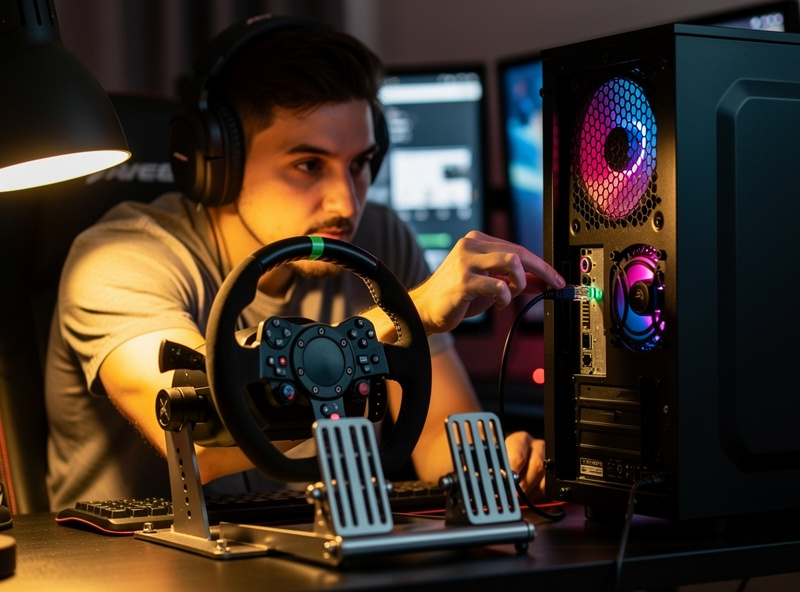
What to avoid in this path:
- Wi-Fi anywhere in the chain — adds 8-15ms of jitter
- Powerline adapters between devices that share the same circuit (microwaves, AC compressors disrupt them)
- Cheap unmanaged switches — most are fine but some have known buffering issues; stick with TP-Link, Netgear, or Ubiquiti
- Old Cat5 cabling — Cat5 works at 100 Mbps but caps you below gigabit, and the longer-distance jitter characteristics are worse
On my rig, the Cat6 cable run from the OPNsense straight to the sim PC NIC was the single highest-impact connectivity change I have made — measurable on every telemetry overlay, not a subjective improvement. For the full cable management picture, our cable management for a sim rig guide covers wiring, routing, and tie-downs. USB peripherals are a separate electrical layer — our USB hub setup for sim racing guide covers how to keep wheel, pedals, shifters, and button boxes on a clean powered bus. This article stays on the network side.
The Router Choice Matters More Than the Plan
The ISP-supplied modem-router combo is the bottleneck for most sim racing setups. Replacing it with a competent router unlocks proper QoS, CAKE bufferbloat management, and traffic shaping that prioritizes your race packets above everything else on the network. The ISP router becomes a simple bridge passing traffic to your real router.
For deep guidance on routers and firewalls that handle sim-racing-grade QoS reliably, our partners at HomeLabRouter have a complete pfSense configuration walkthrough that covers the queue setup, DSCP marking, and CAKE configuration that delivers consistently low jitter. Their pfSense firewall rules beginner guide handles the rule ordering side. The pfSense or OPNsense router on a small mini PC is the highest-leverage hardware upgrade for sim racing once you have wired Ethernet in place.
Without diving into the firewall side, three router-class purchases that work well for sim racing:
- Budget: A used pfSense-capable mini PC ($150-220 on eBay), running pfSense Community Edition. Highest performance per dollar.
- Mid-tier: UniFi Dream Machine Pro ($380), all-in-one router/switch with reasonable QoS
- Enthusiast: A new Protectli Vault Pro ($450-650) with OPNsense or pfSense Plus
Avoid: ISP-supplied gateways, low-end Asus / TP-Link consumer routers (acceptable for browsing but their QoS is typically broken), anything labeled "gaming router" with marketing fluff but no actual fq_codel/CAKE support. I run OPNsense on a Protectli box myself — the CAKE queue on my race VLAN keeps the sim PC uncontested no matter what the rest of the house is pulling.
The router sits upstream of everything else in the PC build — the packets have to arrive before the CPU can process them. Our sim racing PC build guide covers the rest of the chain: CPU, GPU, RAM, and storage, so you are not bottlenecked on either side of the network cable.
Cellular and Mobile Hotspot Reality
5G home internet (T-Mobile Home Internet, Verizon 5G, AT&T Internet Air) has improved dramatically. In strong-signal areas, ping is competitive with mid-tier cable (20-40ms), and jitter under 5ms is achievable. The catch: signal varies dramatically with weather, neighbor cellular usage, and tower load. For competitive sim racing, 5G home is a fallback or temporary solution rather than a primary choice.
Phone tethering or hotspot is acceptable for casual practice but unreliable for competitive races. Latency is typically 40-100ms with significant jitter. If you must use a hotspot, position the phone close to a window for clearest tower line-of-sight and avoid 2.4 GHz Wi-Fi tethering — use USB cable or 5 GHz Wi-Fi tethering instead.
Speed Tests That Actually Tell You What You Need
The mainstream Speedtest.net tool measures bandwidth well but ping and jitter measurements are unreliable. For sim racing, run these instead:
- Waveform Bufferbloat Test (waveform.com/tools/bufferbloat): shows latency under load, which is what matters during racing
- PingPlotter (free trial): hop-by-hop latency over time, useful for diagnosing where jitter is introduced
- Test ping toward your race region: run a 60-second command-line ping against a stable host in the same region as your race farm (iRacing's farms use dynamic IPs, so a nearby datacenter host is the practical proxy) and watch the variance, not the average
- iRacing built-in netcode display: enable in iRacing options; shows live ping, packet loss, and predicted-vs-actual position drift during a session
Run all four tests on your current setup before deciding to switch ISPs or upgrade. I was surprised the first time I logged my own connection — the ping and jitter were good enough, and the real issue was the ISP-supplied router introducing bufferbloat under load. Switching routers adds zero ISP friction and usually solves the problem. Switching ISPs should be the second move, not the first.
What to Do If Your Address Has Limited Options
Not every address has fiber. If you are stuck with cable, DSL, or fixed wireless, the optimization order is:
- Wired Ethernet to your sim PC (always)
- Replace ISP router with a real router with QoS/CAKE
- Schedule large downloads outside of race windows (or QoS-throttle during races)
- If on cable, request a service truck visit if you measure packet loss above 0.5% — usually a marginal coax connection
- If on DSL, distance to the central office is fixed; not much you can do beyond QoS
- If on fixed wireless, position the antenna for maximum signal strength
For racers in rural areas with only Starlink as the realistic option, sim racing is workable but expect occasional warping. Starlink's ping has improved substantially since 2022 (from 80-120ms down to 30-60ms in 2025) but jitter remains higher than terrestrial connections during weather events. Once the network is sorted, one more layer worth addressing: a UPS to keep the sim PC and router alive through a brownout. Our triple-monitor sim rig PSU and battery backup guide covers power-side reliability for the full setup.
The FCC's Measuring Broadband America fixed-broadband report backs this up with measured data: fiber ISPs post the lowest idle latencies of any technology (medians roughly 7-14ms), cable sits in the 12-24ms band, and DSL runs 23-34ms and up depending on line length — and the gap widens further under load. The data confirms what sim racers experience — fiber is the structural advantage that ISP plan-tier marketing cannot match.
Frequently Asked Questions
What is the best internet for sim racing?
Fiber to the home (FTTH) at any plan tier outperforms every other option for sim racing. The bandwidth does not matter much; what matters is fiber's consistently low ping (5-15ms), very low jitter (0.5-2ms), and symmetric upload that protects against contention. If FTTH is available at your address, take the cheapest fiber plan offered.
Do I need gigabit internet to sim race?
No. Sim racing uses about 50-200 KB/s of bandwidth per session. A 100-300 Mbps plan is plenty if the latency is good. The plan tier does not change ping or jitter, only bandwidth. Pay for fiber technology, not for bandwidth.
Is Starlink good enough for sim racing?
Workable for casual racing, marginal for competitive. Starlink ping has dropped to 30-60ms in 2025 and jitter is typically 10-25ms. That is acceptable for league racing in most cases but you will see occasional warping during weather events or satellite handoffs. Not a first choice if terrestrial options exist.
Can I sim race over Wi-Fi or do I need wired Ethernet?
Wired Ethernet is non-negotiable for competitive racing. Wi-Fi adds 8-15ms of jitter even on the best Wi-Fi 6E setups, which causes warping and inconsistent inputs. The single highest-leverage upgrade for any existing setup is running a Cat6 cable to the sim PC.
Will switching ISPs from cable to fiber actually improve my racing?
Yes if you are seeing high jitter or under-load latency spikes. Fiber typically cuts under-load latency from 100-500ms (cable bufferbloat) down to 10-30ms with no router intervention. Run the Waveform Bufferbloat Test on your current setup; if it scores below B grade, fiber will deliver a noticeable racing improvement.
What router should I use for sim racing?
A real router with QoS and CAKE/fq_codel support. The pfSense or OPNsense on a small mini PC is the gold standard at $150-450 depending on hardware. UniFi Dream Machine Pro at $380 is a good all-in-one. Avoid ISP-supplied gateways and consumer routers labeled gaming without verifiable QoS implementation.
How can I tell if my internet is the bottleneck or my router is?
Run a speed test directly from a wired laptop bypassing your router (plug into the modem ONT directly), then run the same test through your router. If ping and jitter are similar both ways, your ISP is the limit. If your router adds significant latency, the router is the bottleneck. The Waveform Bufferbloat Test on both setups gives the clearest comparison.