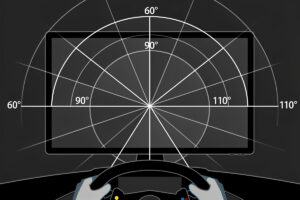
A correct FOV setting makes distances on screen match real-world proportions, so braking points and apex positions feel exactly as they should. The formula is FOV = 2 × arctan(screen width ÷ (2 × viewing distance)), and every major sim includes a built-in calculator that does the math for you — enter your screen size and distance, and the sim sets the correct value automatically.
Using the wrong FOV is the most common setup mistake in sim racing, and it ruins the feel of every car on every track. On the rig I welded, I ran my triples for months with the FOV set 8 degrees too high — corners felt wide and approachable right until I was sailing past the apex. Too high, and corners appear wider than they are, causing you to turn in late and miss apexes. Too low, and the world feels compressed, making you brake too early and drive tentatively. Getting FOV right takes five minutes and transforms your driving consistency for the life of your sim racing career.
Why FOV Matters for Lap Times
FOV directly controls how your brain interprets speed, distance, and corner radius on screen. A correctly calculated FOV makes a 90-degree right-hander look like a 90-degree right-hander. An incorrect FOV — even by 5-10 degrees — makes it look like an 80-degree or 100-degree corner, causing your braking and turn-in timing to be consistently wrong by meters on every lap.
The effect compounds across a lap. A 5-degree FOV error shifts your perceived braking point at every single corner, and on a 15-corner track that is 15 separate opportunities to brake in the wrong place. It rarely shows up as one dramatic mistake — it shows up as the low-level inconsistency that keeps you a tenth or two off a clean lap even when you feel like you’re driving well. On my rig, correcting a wrong FOV never bought me a lap-time miracle, but it noticeably tightened how repeatable my braking points were from lap to lap, which is the thing that actually lets you push closer to the limit with confidence.
FOV also affects car control instincts. With correct FOV, your sense of when the car is about to break traction is more accurate because the speed at which visual cues scroll past your screen matches what your brain expects from real-world driving experience. With incorrect FOV, everything feels slightly off — you second-guess your inputs and drive reactively instead of proactively.
The FOV Formula Explained
The horizontal FOV formula is: FOV = 2 × arctan(screen width ÷ (2 × viewing distance)). Screen width is the physical width of your monitor in centimeters (not diagonal size), and viewing distance is the distance from your eyes to the screen surface. The result is in degrees of horizontal FOV. It’s the same trigonometry iRacing’s own seating-position calculator runs under the hood — I ran the numbers by hand below so you can check any sim’s calculator output against the actual math instead of trusting it blind.
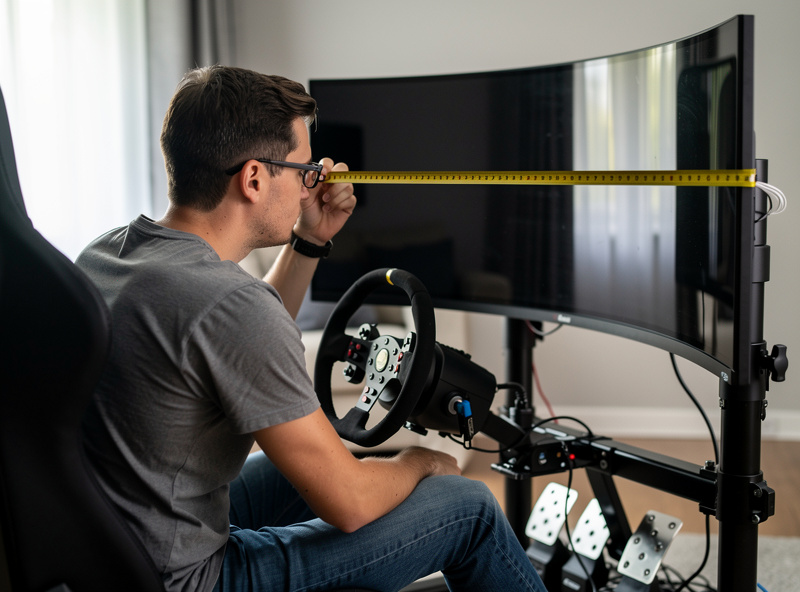
For a 27-inch monitor (59.7 cm wide) at 60 cm viewing distance: FOV = 2 × arctan(59.7 ÷ (2 × 60)) = 2 × arctan(0.4975) = 2 × 26.4° = 52.8°. This is the correct FOV for a single 27-inch monitor at arm’s length. Most sims round to 52-53°.
For a 34-inch ultrawide (79.9 cm wide) at 55 cm distance: FOV = 2 × arctan(79.9 ÷ (2 × 55)) = 2 × arctan(0.7264) = 2 × 36.0° = 72.0°. This is significantly wider than the 27-inch calculation, which is why ultrawides feel so much more immersive — you genuinely see more of the track.
For triples, the calculation accounts for screen angle. Three 27-inch monitors at 45° angle: the effective total width is approximately 170 cm (three screens minus overlap), and the viewing distance is typically 60-70 cm. This yields approximately 155-170° FOV depending on exact angle and distance. Each sim handles the triple calculation slightly differently, so use the sim’s built-in triple FOV tool rather than calculating manually.
FOV Settings by Sim
Every sim handles FOV differently in its settings menu, but the physics behind the calculation are identical. Here is where to find and how to set FOV in the five most popular sim racing titles.
iRacing: Options → Graphics → Field of View. iRacing’s calculator asks for screen width, distance, and number of monitors. Enter your measured values, and it calculates the correct FOV automatically. For triples, iRacing has a dedicated triple-screen calculator that accounts for screen angle and bezel width — use it instead of the single-screen formula.
Assetto Corsa Competizione: Settings → Video → Camera → FOV. ACC uses a vertical FOV value rather than horizontal, which confuses many users. The conversion is: vertical FOV = 2 × arctan(screen height ÷ (2 × distance)). For a 27-inch 1440p monitor (33.6 cm tall) at 60 cm, running the actual math gives 2 × arctan(16.8 ÷ 60) = 2 × 15.6° = approximately 31° vertical FOV — do the calculation for your own panel height rather than trusting a horizontal-to-vertical rule of thumb, since the two numbers are not simply proportional. ACC also supports triple screens through NVIDIA Surround at a custom resolution.
Assetto Corsa: Use Content Manager for FOV settings — the original launcher’s FOV tool is limited. In Content Manager, go to Settings → Assetto Corsa → Video → adjust the FOV slider while viewing a reference object. For triples, Content Manager’s triple-screen plugin handles the geometry automatically when you enter your screen angle and bezel width.
Automobilista 2: Options → Camera → Field of View. AMS2 uses horizontal FOV and includes a calculator that asks for screen size and distance. The result is straightforward — no unit conversion needed. AMS2 also supports native triple-screen rendering without NVIDIA Surround.
Gran Turismo 7: GT7 has a simplified FOV adjustment in Settings → Display → View Distance. Unlike PC sims, GT7 does not expose a precise FOV calculator — you adjust by feel using the view distance slider. Set it so the dashboard instruments feel arm’s length away, then fine-tune based on whether corners feel too tight or too open.
Triple Monitor FOV Setup
Triple monitor FOV requires three additional measurements beyond single-screen: screen angle, bezel width, and the distance between your eyes and the center screen. The physical mounting hardware matters for getting those measurements right — see the sim rig monitor mounting guide for how to position and angle triples correctly before you measure. Most sims ask for these values in a dedicated triple-screen calculator that replaces the single-screen FOV formula — iRacing’s own three-monitor setup guide walks through exactly which measurements its calculator wants and in what order.
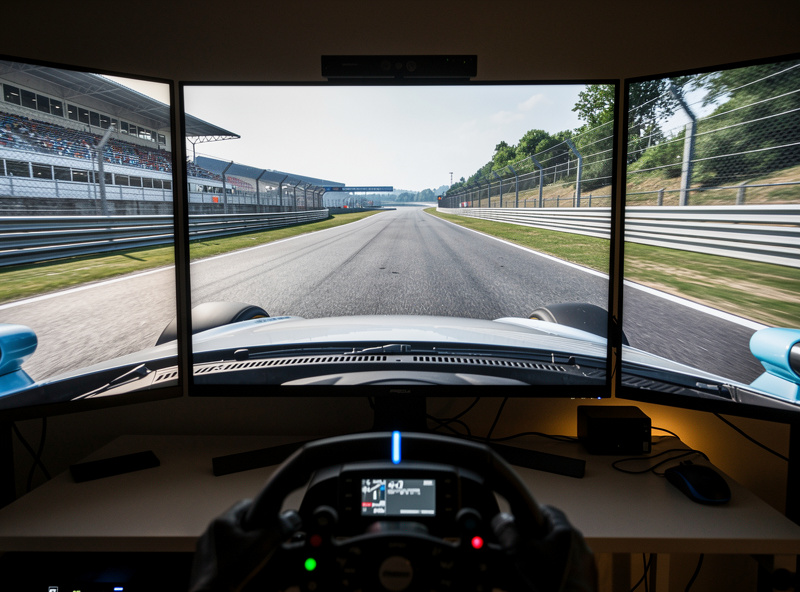
Screen angle is the angle between each side screen and the center screen, measured from the center screen’s plane. Common angles are 45° for tight setups, 55-60° for standard racing cockpits, and 60-75° for maximum immersion. Higher angles increase total FOV but require your eyes to rotate further to see the side screens clearly. Most sim racers settle at 50-60° as the optimal balance between FOV coverage and comfortable eye movement.
Bezel width affects the FOV calculation because it represents dead space between screens that your sim must account for. Measure the total bezel gap — the distance from the active pixel edge of one screen to the active pixel edge of the next screen. Modern thin-bezel monitors typically have 6-12 mm total bezel gaps. Enter this measurement accurately — a 2 mm error in bezel measurement causes approximately 1-2° of FOV inaccuracy.
After entering all measurements, verify the FOV by looking at a known reference on screen. In iRacing, park on a straight and check that the track barriers appear straight (not curved) at the screen edges. In ACC, check that the dashboard steering wheel matches the size and position of your physical wheel. If the virtual wheel appears larger or smaller than your real wheel, adjust the FOV by 1-2° until they match.
Common FOV Mistakes to Avoid
The most damaging FOV mistake is increasing it beyond the calculated value to “see more” — and I have made this one myself. On the rig I welded, I ran 65° on a single 27-inch monitor that math said should be at 53°, and every braking zone felt like a guessing game. This is the sim racing equivalent of driving with a funhouse mirror — everything on screen appears farther away and smaller than it actually is, causing you to brake late, turn in early, and misjudge apex distances. The calculated FOV is mathematically correct; increasing it by even 5° introduces measurable distortion.
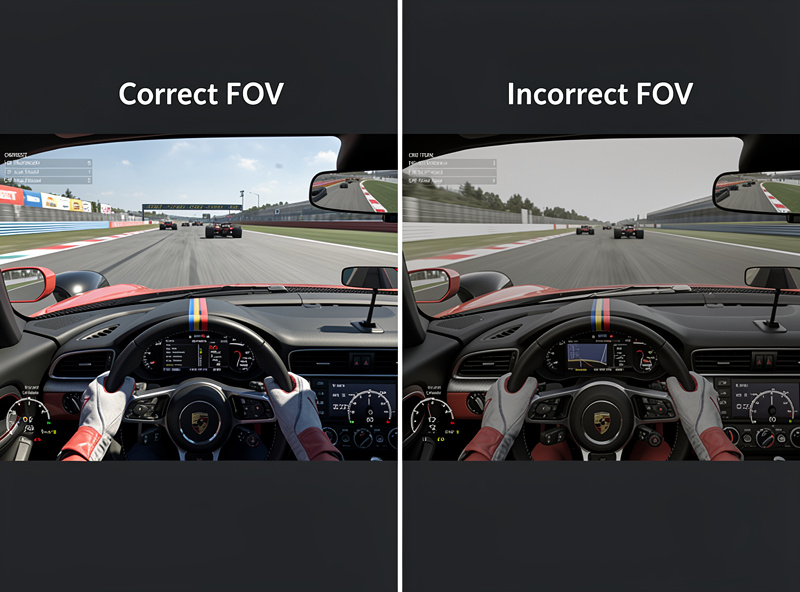
Another common mistake is using the monitor’s diagonal measurement instead of width in the FOV formula. A 27-inch monitor is 59.7 cm wide, not 68.6 cm (the diagonal). Running both numbers through the formula at a typical 60 cm viewing distance, the diagonal figure overstates FOV by roughly 6-7° for a 27-inch screen — the exact gap shrinks a bit on bigger panels and grows a bit at closer distances, but it is always in the wrong direction: too wide, creating a mild fish-eye effect that makes straightaways feel longer and corners feel tighter than they are.
Forgetting to remeasure after changing your rig setup is the third most common error. Moving your monitor 10 cm closer does not add a fixed number of degrees — I ran the formula across the distances people actually sit at (50-70 cm) and the swing from a 10 cm move is closer to 7-12°, with the bigger jump happening when you’re already sitting close. If you recently adjusted your seat position, monitor height, or monitor distance, remeasure and recalculate rather than assuming the old value still roughly holds. The five minutes this takes saves hours of inconsistent driving.
FOV Reference Table
| Setup | Screen Width | Distance | Calculated FOV |
|---|---|---|---|
| Single 27″ (1440p) | 59.7 cm | 55 cm | 57° |
| Single 27″ (1440p) | 59.7 cm | 60 cm | 53° |
| Single 27″ (1440p) | 59.7 cm | 70 cm | 46° |
| Single 32″ (1440p) | 70.8 cm | 60 cm | 61° |
| Single 34″ UW (21:9) | 79.9 cm | 55 cm | 72° |
| 49″ SUW (32:9) | 119.6 cm | 60 cm | 90° |
| Triple 27″ @ 45° | ~170 cm | 65 cm | ~160° |
| Triple 27″ @ 60° | ~180 cm | 65 cm | ~175° |
| Triple 32″ @ 50° | ~200 cm | 70 cm | ~170° |
Frequently Asked Questions
What FOV should I use for a single 27-inch monitor?
For a 27-inch monitor at 60 cm viewing distance, the correct FOV is approximately 52-53 degrees. At 55 cm distance, increase to 57 degrees. Use the FOV calculator built into your sim — enter your screen width (59.7 cm) and measured distance for the exact value.
Should I increase FOV to see more in sim racing?
No. Increasing FOV beyond the calculated value distorts depth perception, making corners appear wider and distances appear shorter than they are. This causes consistently late braking and missed apexes. The calculated FOV is mathematically correct for your screen size and distance — never override it.
How do I calculate FOV for triple monitors?
Triple FOV requires your screen width, viewing distance, screen angle (45-60 degrees typical), and bezel gap measurement. Most sims have a dedicated triple FOV calculator — use it instead of manual calculation. iRacing, ACC, and AMS2 all include built-in triple-screen FOV tools.
Does FOV affect lap times in sim racing?
Indirectly. An incorrect FOV distorts where every braking point and apex actually is, which shows up as inconsistency rather than one big mistake — you brake and turn in slightly wrong at every corner, every lap. Correcting FOV after months of incorrect use typically tightens braking-point consistency noticeably, even when it doesn’t produce a dramatic drop in outright lap time.
What FOV should I use in Assetto Corsa Competizione?
ACC uses vertical FOV. For a single 27-inch 1440p monitor (33.6 cm tall) at 60 cm, the formula — vertical FOV = 2 x arctan(screen height divided by 2x distance) — works out to approximately 31 degrees vertical, not the horizontal-style 33-34 you’d get by mixing up the two axes.