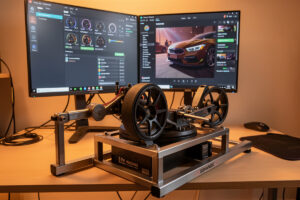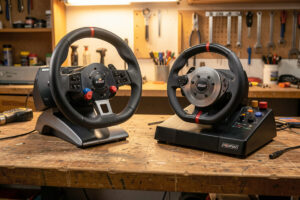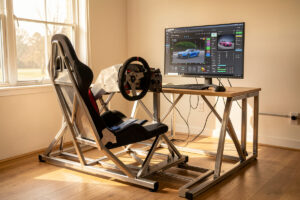
Vendor wheelbase software is where a direct-drive base stops being a lump of torque and starts feeling like a car. Fanalab, Moza Pit House, and Simagic SimPro Manager each own three jobs: they flash firmware, they set the global feel of the base (peak torque, the FFB filters, natural inertia), and they store per-car profiles you swap in the pits. Get the division of labor right and your in-sim FFB settings finally hold still.
I run a rotation of bases on a rig I welded myself — a mid-torque direct-drive as the daily, plus higher-torque Moza and Simagic bases bolted on for comparison — and the single biggest source of “my FFB feels different every session” is people fighting the vendor software and the sim’s own force-feedback slider at the same time. This guide is the map: what lives in the vendor app, what lives in the sim, what lives in firmware, and the order I set a new base up in so the two layers stop cancelling each other out.
What Wheelbase Software Actually Does (and What It Can’t)
Vendor wheelbase software is the control panel for the base itself, sitting one layer below the game. It sets the physical ceiling and character of the motor — peak torque in Nm, the reconstruction/interpolation filter, and the three “feel” filters (natural damper, natural inertia, natural friction) — then hands a clean signal to the sim. It does not generate the forces you feel corner to corner; the sim’s physics engine does that. That split is the whole game.
Here is the mental model I use across every base I’ve run: the sim says “apply 6 Nm of steering force right now,” and the vendor software decides how faithfully, how smoothly, and with how much added weight the motor delivers that request. Turn the vendor filters up too far and you’re smearing the sim’s signal; leave the peak torque set wrong and the sim’s carefully tuned slider is either clipping into a wall or barely tickling the rim. The software can’t invent detail the sim didn’t send, but it can absolutely destroy detail the sim did send. Ninety percent of “bad FFB” I diagnose is a vendor-software setting fighting the game, not a weak base.
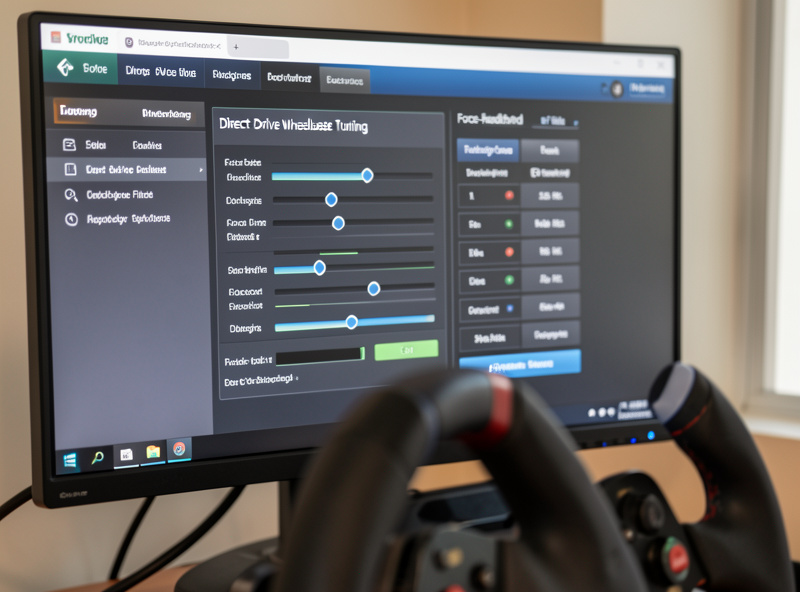
The Three Ecosystems: Fanalab, Moza Pit House, Simagic SimPro Manager
Every major direct-drive brand ships its own control app, and they are more alike than the marketing suggests: all three flash firmware, set global torque and filters, and store per-car profiles. Where they differ is auto-profile switching, how they expose the FFB filters, and how aggressively they want to own settings the sim should arguably own. I’ve spent long stretches in all three, and none is “best” — they’re best for the base you bought, because each one only talks to its own hardware.
| Capability | Fanalab (Fanatec) | Moza Pit House | Simagic SimPro Manager |
|---|---|---|---|
| Firmware flashing | Yes, per-component | Yes, base and wheel | Yes, base and wheel |
| Per-car auto profiles | Yes, game and car aware | Yes, per-title profiles | Yes, profile slots |
| FFB filters exposed | NDP / NFR / NIN plus INT | Damper / friction / inertia | Damper / friction / inertia plus softness |
| On-base display control | Deep tuning-menu mirror | Moderate | Moderate |
| Best treated as | Profile manager plus firmware | Global feel plus firmware | Global feel plus firmware |
If you’re still choosing hardware rather than tuning what you own, the software ecosystem should factor into the decision — it’s part of living with a base for years. I break the hardware side down in the direct-drive wheelbase brands guide and how much wheelbase torque you actually need. For dialing in what’s already on your rig, the per-brand walkthroughs below are the detail.
Firmware vs Software: Why the Distinction Matters
Firmware is the code running on the base; the software is the app on your PC that talks to it. They version separately, and mismatches are the quiet cause of a base that “won’t connect,” loses its center, or shows filters that don’t do anything. As a rule the PC app expects a firmware within a version or two of itself — update the app and it will usually prompt you to flash the base to match.
The reason to care: a firmware flash is the one operation on a wheelbase that can actually brick hardware if it’s interrupted, and it’s the one thing the vendor software does that you can’t undo from the sim. I treat firmware as an occasional, deliberate maintenance task — not something to chase on release day — and I walk through the safe procedure end to end in how to update sim wheelbase firmware safely. Everything else in the vendor app is reversible in seconds; firmware is the part that deserves respect.
The Settings That Actually Live in Vendor Software
Strip away the menus and every vendor app is really setting four things: peak torque, the reconstruction/interpolation filter, the three feel filters, and per-car profiles. Learn those four and you can walk into Fanalab, Pit House, or SimPro Manager and be productive in ten minutes, because the labels change but the physics don’t.
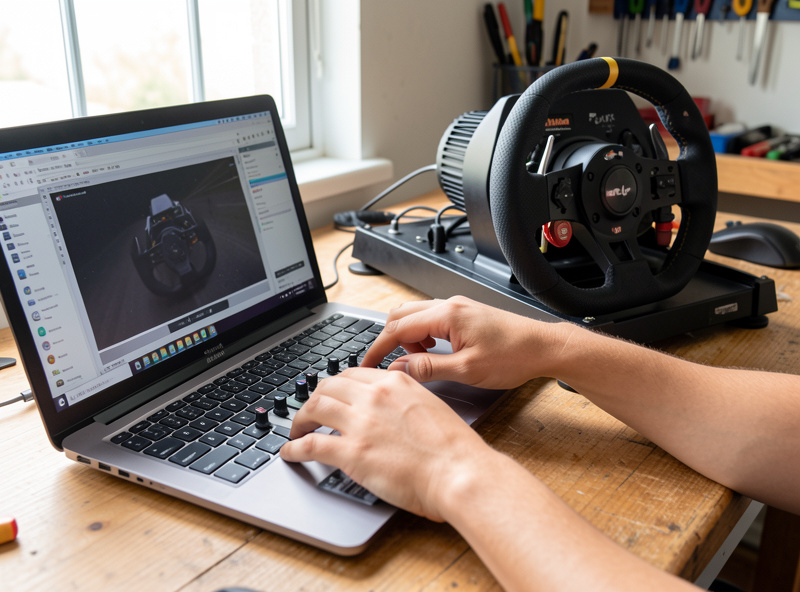
Peak torque is the ceiling — the Nm the base will deliver at full force. I set this per base to a level I can hold for a full stint without forearm fatigue, then let the sim’s in-game FFB gain do the fine scaling. Setting peak torque to the maximum on day one is the classic beginner mistake; it guarantees clipping and it teaches you nothing about the car. The reconstruction filter (INT on Fanatec, interpolation elsewhere) smooths the gaps between the sim’s FFB updates — useful at low levels on titles with a coarse FFB rate, harmful at high levels because it adds latency and rounds off kerb detail.
The remaining two categories — the feel filters and per-car profiles — are big enough to deserve their own guides, below.
Natural Damper, Inertia, and Friction: the Feel Filters
The three “natural” filters are the most misunderstood settings in any wheelbase app. They add simulated weight, resistance, and stiction to the wheel to mimic the mass and hydraulic drag of a real steering rack — a direct-drive motor on its own feels unnaturally free and springy, and small doses of these filters fix that. Overdone, they mask the exact road detail you bought a direct-drive base to feel.
My starting point on any base is a light hand: enough natural friction and inertia to take the “loose” feeling out of on-center, essentially zero natural damper unless a specific car feels nervous. I break down exactly what each one does, and where I set mine, in vendor FFB filters explained. It pairs with the in-sim side of the same problem in my guide to damper and friction in sim racing wheels — the vendor filter and the game’s damper stack on top of each other, which is why “why is my wheel so heavy” is almost always a double-dose.
Per-Car FFB Profiles: Why One Setting Never Fits Every Car
A GT3 car and an open-wheeler load the front axle completely differently, so a torque and filter set that feels perfect in one will clip or go numb in the other. Every vendor app solves this with profiles — named setting slots the software swaps automatically as you change car or title. This is the feature that turns wheelbase software from a set-and-forget panel into a genuine tuning tool.
My working library is small on purpose: a high-grip GT profile, a lighter formula profile, a heavy vintage/road profile, and a rally/loose-surface profile. I build them from telemetry rather than feel — watching an FFB clipping meter so I know each car is using the base’s range without slamming into the ceiling. The full method, including how to name and auto-switch profiles across all three apps, is in per-car FFB profiles in vendor software.
Vendor Software vs In-Sim FFB: Who Owns What
This is the confusion that costs people the most time. The vendor software sets the base’s character; the sim sets the car’s forces. Set peak torque and filters once per base in the vendor app, then do your per-car scaling with the in-game FFB gain and never touch the vendor peak again. When both layers change between sessions, you can never tell which one caused the difference — the cardinal sin of FFB tuning.
Concretely: I keep the vendor filters and peak torque stable, then tune each car inside the sim using an FFB meter. My full in-sim workflow lives in the sim racing force feedback tuning guide, with title-specific numbers in the iRacing FFB settings guide. If you’re still deciding whether the base itself is the limiting factor, direct drive vs belt drive force feedback and whether high-torque direct drive is worth it cover the hardware ceiling that no software can raise.
How I Set Up a Brand-New Base From Scratch
My order never changes, and it’s the fastest path to FFB that holds still. First, install the vendor app and flash firmware to match — get the versions aligned before touching a single slider. Second, set peak torque to a level I can hold for a full stint, not the maximum. Third, set the reconstruction filter low and the three feel filters light. Fourth, save that as a global base profile and leave it alone. Only then do I go into the sim and tune per car with the in-game gain and an FFB meter.
Doing it in this order means the base has one stable character, and every car difference I feel afterward is a real physics difference, not a setting I forgot I changed. It also means the one risky operation — the firmware flash — happens once, deliberately, before I’ve invested any tuning time. The rig underneath matters too: no software setting survives a base bolted to a flexing desk, which is why I put the rig build and pedals ahead of the wheelbase in the upgrade order. If you want the broader theory before the numbers, the force feedback configuration primer covers the fundamentals.
As an Amazon Associate I earn from qualifying purchases. If you’re flashing firmware on a laptop, a powered USB data hub gives the base a stable connection during the flash — the one accessory I’d genuinely insist on for the update step.
Backing Up and Migrating Your Profiles
Once you’ve built a profile library from telemetry, it’s genuinely valuable work — and a Windows reinstall or a corrupted app folder can wipe it in a second. Every vendor app stores profiles as files on the PC, so backing them up is nothing more than copying a folder, but almost nobody does it until they’ve lost a set. I copy my profile folder to the same wired network share the rest of the rig backs up to, so a base swap or a fresh PC is a restore, not a rebuild.
This matters more than it sounds because a good per-car profile is the accumulation of dozens of small telemetry-guided adjustments — the exact gain where a GT3 kisses the clipping ceiling at Eau Rouge, the friction level that settles a nervous formula car on-center. Losing that means re-driving every reference lap to find the numbers again. The other reason to keep exports is sharing: profiles are portable between two identical bases, so when I set up a second rig or help someone with the same base, I hand them a known-good starting file instead of talking them through every slider. Treat your profile folder like tune files for a car — version it, back it up, and it becomes an asset instead of something you rebuild every time the PC hiccups.
Wheel-Side Settings the App Also Controls
People forget the vendor software isn’t only a base tool — it’s also where the wheel rim gets configured, and that half is easy to overlook until a button does nothing. Across the bases I’ve bolted on, the same app that sets torque also maps button-box inputs, controls the rim’s on-board display and RPM LEDs, and — the one that matters most for racing — sets the dual-clutch bite point for a clean launch.
The dual-clutch setup is worth learning properly because it’s pure lap time off the start. In every ecosystem you assign two paddles as clutches, set a bite-point percentage, and the software blends them so pulling both then releasing one gives a repeatable getaway. I set mine per car because the bite point that launches a torquey GT3 bogs a light formula car. The rim display settings — what telemetry the OLED shows, how the shift lights are calibrated to each car’s rev range — also live here, though I run most of my dashboards through a separate telemetry setup rather than the rim’s built-in screen. The rule of thumb: if it’s a physical control on the wheel, the vendor app is where you teach it what to do.
Reading an FFB Clipping Meter: the Skill That Ties It Together
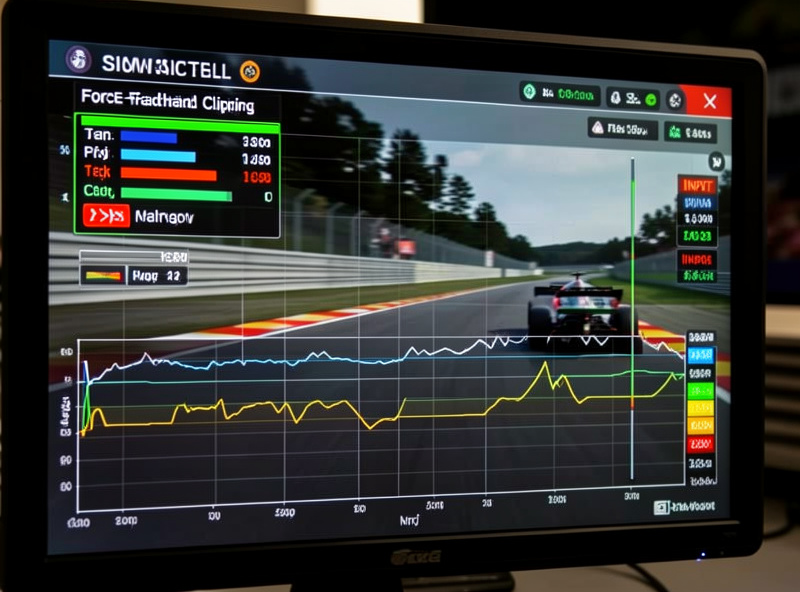
None of the numbers above mean anything until you can see whether the base is actually using its range, and that’s what an FFB clipping meter shows. Clipping is when the sim asks for more force than your peak-torque ceiling allows — the signal flat-tops, and every bit of detail above that ceiling is lost. A meter that pegs red through a corner is telling you to lower in-game gain (or, rarely, raise peak torque); a meter that barely moves says you’re leaving detail and weight on the table.
This is how I tune every car instead of guessing. I run an on-screen FFB/clipping overlay, drive the fastest corner on a reference lap, and adjust in-game gain until the meter kisses the ceiling on the biggest load without living there. It’s the single habit that separates people who “feel their way” to numb or clipped settings from people whose FFB is genuinely faithful. The vendor software’s job in that loop is simply to hold the ceiling stable so the meter reading means the same thing every session — which is why I never touch vendor peak torque once it’s set. The full clipping-diagnosis walkthrough sits in the force feedback tuning guide.
Connection and Centering Problems (and the Fixes)
Three faults account for most “my base is broken” panics, and none of them is a broken base. A base that won’t appear in the app is almost always a firmware/app version mismatch or a flaky USB port — plug the base straight into a rear motherboard USB port, not a front-panel or unpowered hub, and re-flash to match versions. A wheel that’s off-center after a quick-release swap needs a recalibration/centering routine in the app, which takes ten seconds and should be done every time you change rims. And a base that suddenly feels weak is usually a thermal-protection state after a long high-torque stint — the motor is throttling itself to cool, exactly as designed.
The pattern in all three: the vendor software is the diagnostic tool, not the culprit. It reports firmware version, connection state, motor temperature, and calibration status, and reading those four fields resolves the overwhelming majority of issues without a support ticket. I keep the app installed on the sim PC purely so those readouts are one click away when something feels off mid-session.
Latency: Does the Vendor App Add Any?
A fair question for anyone who obsesses over the input chain like I do: no, a properly configured vendor app doesn’t add meaningful steering latency, because once profiles are set the forces are computed on the base itself, not round-tripped through the PC app. The latency that matters lives elsewhere — in the sim’s FFB update rate, your display’s frame pacing, and the USB polling — not in the control software sitting idle in the tray.
The one exception is Fanalab’s automatic per-car profile switching, which keeps the app actively watching the running game so it can swap profiles on car change; that’s a background convenience, not something in the force path. If you want the full picture of where milliseconds actually hide in a sim rig, from network to display, the sim racing latency and internet setup guide maps the whole chain. The short version: fix your rig, your ceiling, and your gain before you ever blame the control app for feel.
Frequently Asked Questions
Do I need the vendor software running while I race?
No. Once profiles and firmware are set, the settings live on the base itself, so you can close the app. Fanalab is the exception if you rely on its automatic per-car profile switching, which needs the app open to watch the game.
Should I set torque in the vendor software or in the game?
Set peak torque once per base in the vendor software to a level you can hold for a full stint, then do all per-car scaling with the in-game FFB gain. Changing both layers means you can never tell which one caused a change in feel.
Will Fanalab work with a Moza or Simagic base?
No. Each vendor app only talks to its own hardware. Fanalab is Fanatec-only, Pit House is Moza-only, and SimPro Manager is Simagic-only. There is no universal wheelbase control app that covers all brands.
Is a firmware update actually necessary?
Only when the PC app prompts a version mismatch or you are chasing a specific bug fix or feature. Firmware is the one wheelbase operation that can brick hardware if interrupted, so I treat it as occasional deliberate maintenance, not a release-day chase.
Why does my wheel feel too heavy even at low torque?
Almost always a double dose of damping: the vendor natural damper filter and the sim’s own damper are stacking on top of each other. Zero the vendor damper first, then add any weight you want from a single layer, not both.
What is the reconstruction or interpolation filter for?
It smooths the gaps between the sim’s force-feedback updates. Low levels help on titles with a coarse FFB rate, but high levels add latency and round off kerb and road detail, so I keep it minimal on a direct-drive base.